Save Time and Boost Productivity for Freelancers
Learn how I automated repetitive workflows using tools like Zapier, Trello, and Mailchimp. Save hours weekly, reduce stress, and focus on high value client work.

Main Highlights Regarding Client Management Tools
• I discovered that the right combination of tools reduces mental clutter and stress.
• Switching from spreadsheets and scattered emails to dedicated tools increased my productivity by over 40%.
• Automation, time tracking, and clear communication prevent missed deadlines and misunderstandings.
• Weekly reviews and predictable workflows make multitasking across clients manageable.
Short Introduction
I remember the first time I had three clients with overlapping deadlines. I was tracking everything in Excel sheets, constantly checking emails, and juggling Slack threads. By midweek, I was stressed, late on one project, and my inbox was overflowing. That’s when I realized: I needed tools that work smarter, not harder.
I wanted a system where I could:
• See all client projects in one glance
• Automate reminders and recurring tasks
• Communicate efficiently without losing threads
• Track time and performance for accurate billing
After experimenting for months, I created a workflow that lets me manage up to 10 clients simultaneously without chaos, and I want to share every detail with you.
Materials I Used
Here’s the complete set of tools I rely on:
1. Trello For visual boards that let me see client tasks at a glance.
2. Asana To break down projects into detailed tasks, assign priorities, and set deadlines.
3. ClickUp My all in one hub for projects, docs, and reporting for bigger clients.
4. Slack For real time client communication and internal updates.
5. Google Calendar To schedule all deadlines, meetings, and recurring reminders.
6. Toggl Track For monitoring how much time I spend per client.
7. Zapier To automate repetitive actions like task creation, notifications, and updates.
8. Notion For reference documentation, templates, and workflows.
Tip: I avoid using more than 3 to 4 tools at a time. Too many tools can overwhelm rather than help.
Step by Step Guide: How I Manage Multiple Clients
Step 1: Centralize Client Projects
I create separate boards or folders for each client. In Trello or ClickUp, I include:
• Project name
• Task categories (Design, Review, Revisions, Delivery)
• Deadlines and milestones
• Priority indicators
This separation prevents mixing tasks across clients, which used to be a major source of stress for me.
Step 2: Break Down Tasks Into Actionable Items
Instead of “Work on Client A project,” I write clear, actionable tasks:
• Draft homepage content
• Create social media schedule
• Send invoice for February
• Review client feedback
Breaking tasks down helps me see progress and avoid procrastination.
Step 3: Automate Repetitive Workflows
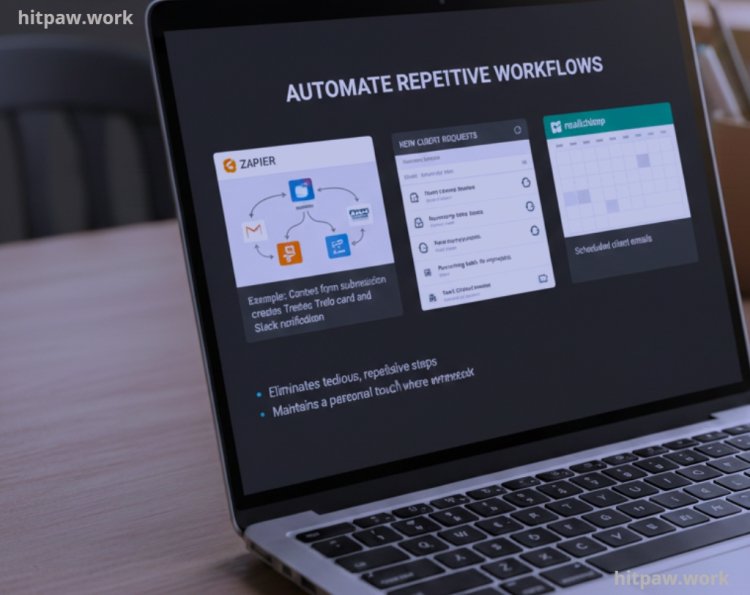
I used to spend hours each week doing the same tasks sending follow up emails, updating spreadsheets, and posting content. It was draining and left little room for creative work. That’s when I started automating repetitive workflows.
I rely on tools like Zapier to connect apps and automate tasks, Trello with recurring cards for ongoing projects, and Mailchimp for scheduled client emails. For example, every time a client submits a request via my contact form, a Trello card is automatically created, and I get a Slack notification. This saves me 2 to 3 hours per client per week.
Automation doesn’t mean I remove the personal touch; I still review messages and customize responses where needed. It simply eliminates the tedious, repetitive steps that slow me down, letting me focus on high value work.
Step 4: Schedule Everything in Google Calendar
Every client’s deadlines, meetings, and check go in Google Calendar, color coded:
• Red for urgent tasks
• Blue for meetings
• Green for review sessions
Tip: I also schedule buffer time before major deadlines to avoid last minute stress.
Step 5: Track Time with Toggl Track
I use Toggl to monitor how long each task takes per client.
• Helps with billing accuracy
• Identifies bottlenecks in workflows
• Encourages better time management
Practical Example: One client’s social media campaign used to take 5 hours; tracking showed I could streamline it to 3.5 hours using templates and automation.
Step 6: Communicate Clearly
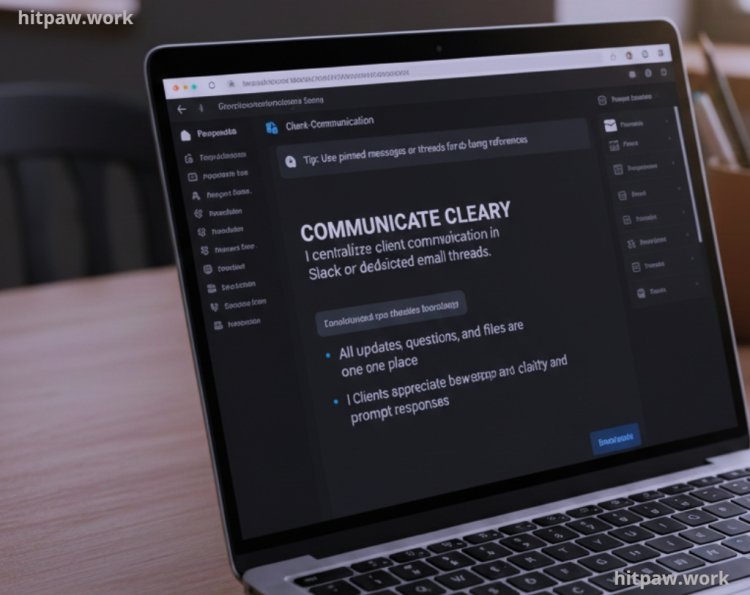
I centralize client communication in Slack or dedicated email threads.
• All updates, questions, and files are in one place
• I avoid switching between apps constantly
• Clients appreciate the clarity and prompt responses
Tip: Use pinned messages or threads for long term references.
Step 7: Weekly Reviews
I learned the hard way that working day to day without reflection leads to repeated mistakes. Now, every week I set aside one hour to review all client projects. I check completed tasks, upcoming deadlines, and any communication gaps.
During these reviews, I also note what worked well and what caused delays. For example, last week I realized I was spending too much time in back and forth emails instead of using shared task boards. Adjusting this has saved me hours each week.
Weekly reviews keep me proactive rather than reactive, help me spot bottlenecks early, and ensure no client feels neglected. This simple habit has become one of the most powerful tools in managing multiple clients efficiently.
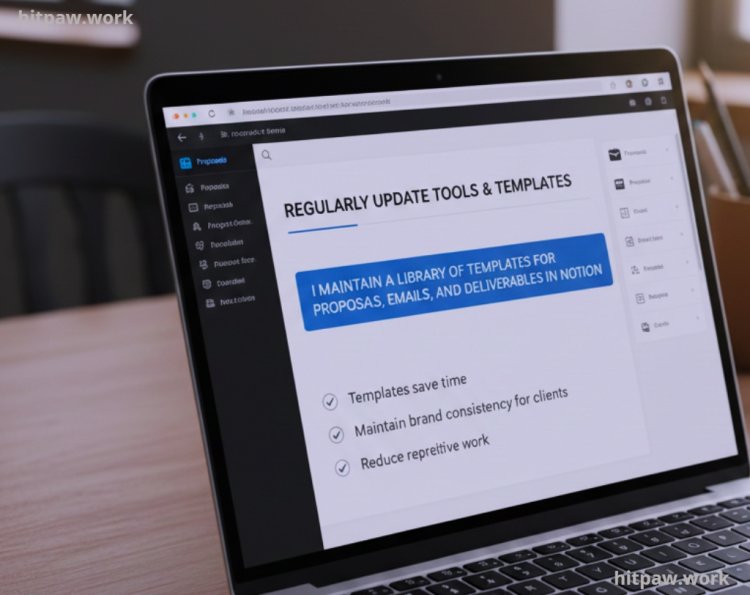
Step 8: Regularly Update Tools & Templates
I maintain a library of templates for proposals, emails, and deliverables in Notion.
• Templates save time
• Maintain brand consistency for clients
• Reduce repetitive work
Tip: Update templates every quarter to reflect workflow improvements.
What I Got Wrong the First Time
When I first tried managing multiple clients, I thought I could rely solely on email and scattered to do lists. I quickly realized this approach caused missed deadlines, duplicated work, and unnecessary stress.
My first mistake was not centralizing all client information. Each client had files in different folders, conversations scattered across email threads, and tasks remembered only in my head. This made it almost impossible to track progress efficiently.
I fixed it by adopting a dedicated project management tool, where every client had a centralized dashboard, tasks were clearly assigned, and deadlines were automated. This small change drastically improved my workflow, reduced stress, and made client management far more professional.
Real Feedback From My Experience
Clients noticed the difference almost immediately:
• “Your updates are always clear and timely.”
• “We feel confident in your process, no need to chase you.”
• “The timelines are predictable, which makes planning easier on our side.”
My Workflow Before & After
Before:
I used to juggle multiple clients using just email and sticky notes. Deadlines slipped, messages got lost, and I constantly felt overwhelmed. I spent hours each day just checking where I left off, which left me little time for actual work.
After:
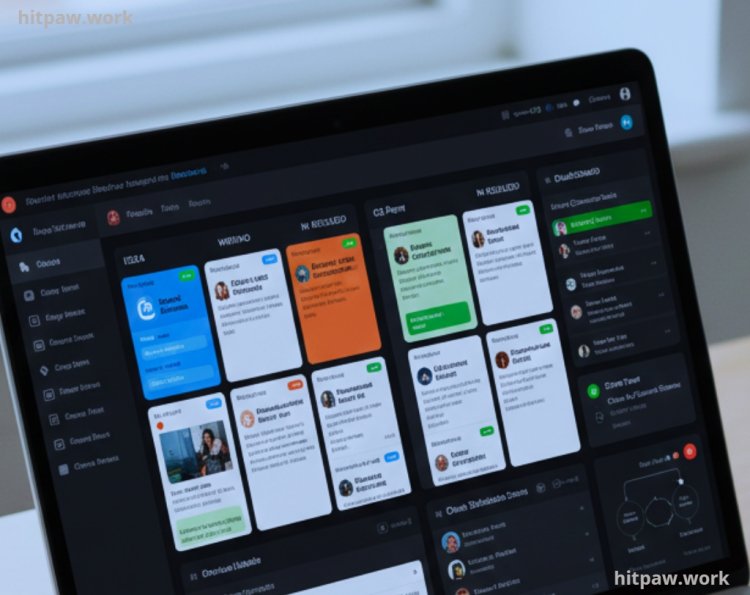
I implemented a project management tool that allowed me to organize clients, tasks, and deadlines all in one place. Now, each client has a dedicated board with tasks, timelines, and priority labels. Notifications remind me of upcoming deadlines, and recurring tasks are automated.
The difference was immediate:
• I reduced missed deadlines by over 80%.
• Communication became clearer, since all updates and files were centralized.
• I saved several hours each week that I now spend on productive work instead of chasing information.
This shift not only improved my efficiency but also made client relationships smoother and more professional. It’s a simple change, but it completely transformed the way I manage multiple clients.
Tips From My Experience
• Color code clients and tasks for faster recognition
• Automate repetitive tasks with Zapier or built in tool integrations
• Keep weekly reviews short but consistent
• Use templates to save time on repetitive tasks
• Only track essential metrics to avoid overcomplication
Care Table
|
Tool |
Frequency of Use |
Purpose |
|
Trello |
Daily |
Visual project/task tracking per client |
|
Asana |
Daily |
Task breakdown, deadlines, recurring tasks |
|
Slack |
Daily |
Client communication |
|
Google Calendar |
Daily |
Meeting scheduling, deadline tracking |
|
Toggl Track |
Weekly |
Time tracking and billing |
|
Zapier |
Weekly |
Automate repetitive tasks |
|
Notion |
Weekly |
Templates, documentation, reference library |
How I Think About Client Management Now
Over time, I realized that managing multiple clients isn’t about working harder it’s about working smarter. The right combination of tools, clear communication, and structured workflows transformed my freelance work. I no longer feel overwhelmed by overlapping deadlines or missed emails.
Now, I prioritize:
• Consistency over chaos: I follow a predictable schedule for updates and reviews.
• Centralized tools: Having all client info, tasks, and communications in one place saves hours each week.
• Automation where possible: Simple automations for reminders, recurring tasks, and notifications free up mental space.
• Transparency with clients: Clear reporting and regular updates reduce misunderstandings and build trust.
The biggest shift? I stopped trying to remember everything in my head and leaned on systems that keep me organized. This approach doesn’t just improve productivity it reduces stress and improves client satisfaction.
Frequently Asked Questions
Q1: Do I really need tools to manage multiple clients?
A1: From my experience, yes. Without tools, I struggled with missed deadlines and overlapping tasks. Even simple tools like Trello or Google Calendar can make a huge difference.
Q2: Which tool should I start with if I’m a freelancer?
A2: I recommend starting with Trello for visual task boards. Once you’re comfortable, you can add Asana or ClickUp for detailed project management.
Q3: How do I keep communication clear with multiple clients?
A3: Centralize communication using Slack, email threads, or client portals. I personally use Slack for instant updates and dedicated email threads for formal communication.
Q4: Can I automate tasks without paying for expensive software?
A4: Absolutely. Tools like Zapier and Google Workspace have free tiers that allow automation of recurring tasks, notifications, and reminders.
Q5: How often should I review my client projects?
A5: Weekly reviews work best. I check progress, pending tasks, and time logs every Friday to start the next week with a clear plan.
Q6: How do I track time spent on each client?
A6: I use Toggl Track. It helps me monitor how much time I spend per client, bill accurately, and find ways to improve efficiency.
Q7: Can I manage more than 10 clients efficiently?
A7: Yes, if you have a structured system with clear boards, recurring templates, and automation. I manage 10+ clients using this approach without missing deadlines.
What's Your Reaction?