Tools and Tips to Organize Digital Files Efficiently for Freelancers
Discover practical tools, workflow tips, and strategies I use to organize digital files, save time, and work smarter. Real life examples and step by step guidance included.

Key Points Regarding Tools to Organize Digital Files
• How I struggled with digital clutter before discovering effective tools
• Step by step workflow for organizing files efficiently
• Tools I personally tested: Google Drive, Dropbox, Notion, Trello, and local storage management apps
• Real feedback from using these tools across multiple projects
• How automation and consistent folder structures save time and reduce stress
Short Introduction
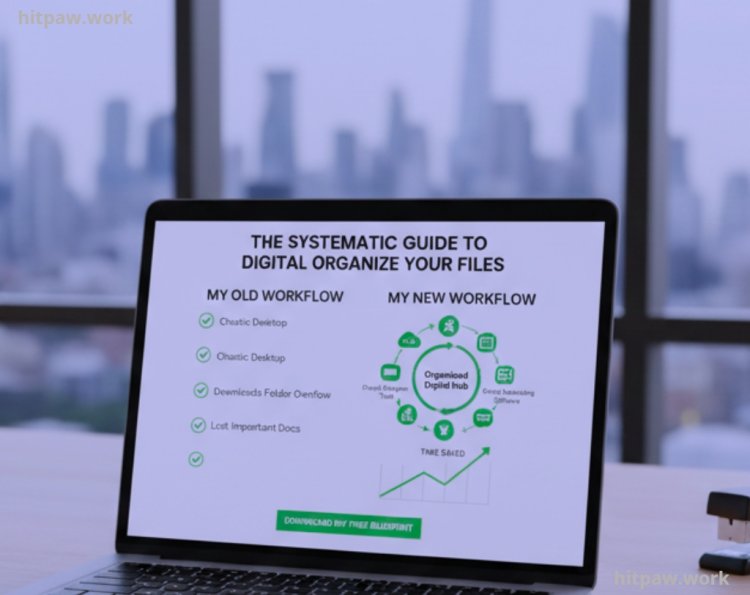
I used to spend hours searching for the right files. My desktop was chaotic, my downloads folder was overflowing, and sometimes I even lost important project documents because of poor organization. It was stressful and slowed down my workflow significantly. I realized that if I wanted to work efficiently, I needed a system a combination of tools and strategies to keep my digital files organized.
After years of trial and error, testing multiple tools, and refining my workflow, I developed a method that actually works. I’m sharing it here so you can avoid the chaos and set up a system that saves you time.
Tools & Materials
Here’s what I used to organize my digital files efficiently:
• Google Drive for cloud-based storage and sharing
• Dropbox for real time syncing across multiple devices
• Notion for file documentation, tagging, and referencing
• Trello for project tracking and linking relevant files
• Microsoft OneDrive for integrated backup and version control
• Local file management using File Explorer (Windows) or Finder (Mac)
• Standardized naming conventions
• Color coded folders and tags for quick visual categorization
Step by Step Guide
Step 1: Audit Your Current Files
I started by reviewing all my files across devices, including desktop folders, downloads, old drives, and cloud accounts. I identified the most frequently used file types:
• Project documents
• Images and graphics
• Spreadsheets and reports
• Emails and attachments
Step 2: Define a Folder Structure
I created a consistent folder structure across all devices. This included separate folders for each client, projects, archives, personal files, and references. A clear structure allowed me to know exactly where each file belonged.
Step 3: Standardize File Naming Conventions
I started naming files in a descriptive, consistent way. For example, including the client name, project, type, and date. This eliminated confusion and made searching for files fast and easy.
Step 4: Use Cloud Tools for Easy Access
Uploading files to Google Drive and Dropbox ensured redundancy. Shared folders allowed me to collaborate with clients and teammates without emailing multiple attachments.
Step 5: Implement Tags & Color Codes
I labeled files using color codes and tags, like urgent, ongoing, or completed. This helped me prioritize visually and quickly scan what needed attention.
Step 6: Link Files to Project Boards
Using Trello, I linked files directly to project cards. Each card contained attachments, deadlines, and status updates, eliminating the need to hunt for files across multiple folders.
Step 7: Automate Repetitive File Tasks
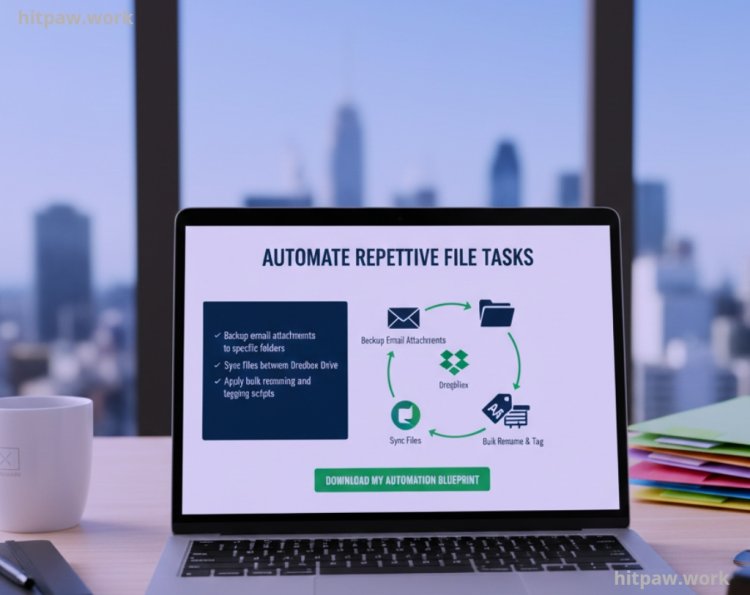
I set up automatic syncing between cloud and local storage. Automation tools helped me:
• Backup email attachments to specific folders
• Sync files between Dropbox and Google Drive
• Apply bulk renaming and tagging scripts
Automation saved several hours each week and reduced the risk of human error.
Step 8: Regular Maintenance
I scheduled weekly reviews to delete duplicates, archive completed projects, and reorganize new files. Maintaining the system prevents digital clutter from building up again.
My Workflow Before & After
Before:
• Searching for a document could take 10 to 20 minutes
• Multiple versions of the same file scattered across folders
• Emailing files back and forth with clients
• Missed deadlines because of misplaced files
After:
• Access files within seconds using structured folders and tags
• Cloud syncing ensured all devices had the latest version
• Project boards linked to documents streamlined client communication
• Regular backups prevented lost files
The difference was dramatic. My workflow became predictable, stress-free, and highly efficient.
What I Got Wrong the First Time
When I first tried organizing my digital files, I made several mistakes that cost me a lot of time and created unnecessary stress. Looking back, these were the biggest lessons I learned:
1. I didn’t plan my folder structure
At the start, I just dumped all files into a single folder. PDFs, images, spreadsheets everything together. I thought I’d figure it out later. Big mistake. Searching for specific files became a nightmare, and I wasted hours every week trying to locate documents.
2. Inconsistent file naming
I used random names like “Final_version2” or “Doc1” instead of clear, descriptive names. This caused confusion, especially when sending files to clients or collaborators. I later realized a standard naming system made everything instantly accessible.
3. No backups
I relied solely on my computer’s hard drive. One day, it crashed. I lost several months of work. After that, I implemented cloud storage (Google Drive and Dropbox) plus a secondary local backup system.
4. Overcomplicating tools
At first, I tried to use every tool available from Trello and Notion to obscure automation apps. Instead of making my workflow smoother, it made it chaotic. I learned to focus on 2 to 3 tools that truly fit my workflow.
5. Skipping regular maintenance
I thought organizing once would be enough. Big mistake. Files got messy again in weeks. I now schedule weekly or monthly reviews to tidy up folders, archive old files, and delete duplicates.
Real Feedback From My Experience
• Client projects became easier to manage and share
• Team collaboration improved with shared cloud folders
• Saved at least five hours per week previously spent hunting files
• Reduced stress from mismanaged files and missed deadlines
Care Tips for Your Digital Files
Keeping your digital workspace organized isn’t a one-time task it requires consistent maintenance. Based on my experience, these practical tips have saved me hours every month:
1. Weekly File Review
Spend 10 to 15 minutes each week reviewing new files. Move them to the correct folders, rename them if needed, and delete duplicates. This prevents clutter from piling up.
2. Use Consistent Naming Conventions
This makes searching faster and avoids confusion when collaborating.
3. Archive Old Projects
Move completed projects to an archive folder. This keeps your active workspace clean and ensures you can still access past work if needed.
4. Regular Backups
Always keep at least two backups:
o Cloud storage (Google Drive, Dropbox, OneDrive)
o Local external drive
Automated backup tools like Backblaze or Acronis can make this effortless.
5. Clean Your Inbox and Download Folder
Your email and downloads are often the source of digital chaos. Organize attachments immediately into folders, and remove unnecessary downloads weekly.
6. Limit Tool Overload
Using too many apps for file management can complicate your workflow. Stick to 2 to 3 tools that integrate well and fit your workflow.
Tips From My Experience
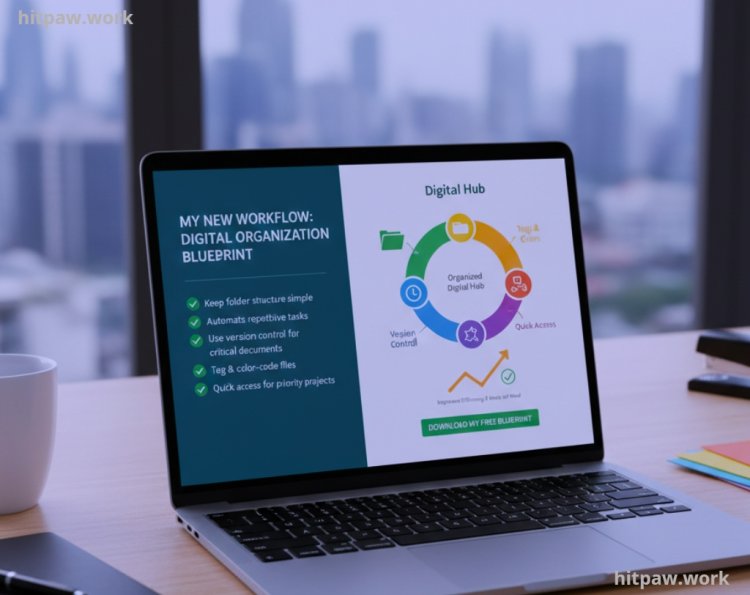
• Keep your folder structure simple avoid too many nested folders
• Automate repetitive tasks wherever possible
• Use version control for critical documents
• Tag and color code files for fast visual scanning
• Maintain a quick access folder for current priority projects
How I Think About Digital File Organization Now
After years of juggling countless folders and files, I’ve realized that simplicity and consistency matter more than fancy tools. I focus on a clear folder structure, consistent naming, and regular backups. Automating repetitive tasks with tools like Zapier or IFTTT saves me hours each week.
The biggest change in my workflow came when I started weekly reviews just 15 to 20 minutes to clean up, move, and rename files keeps everything manageable. I also learned that archiving old projects instead of keeping everything in active folders drastically reduces stress and speeds up work.
Frequently Asked Questions
Q1: Why is digital file organization important for freelancers and professionals?
Disorganized files lead to wasted time, missed deadlines, and stress. Keeping files structured and accessible ensures efficiency and reduces errors.
Q2: Can I organize files without using cloud storage?
Yes, but it’s riskier. Local-only storage can fail due to hardware issues. Cloud storage ensures redundancy, easy access, and collaboration.
Q3: How do I choose the best tools for my workflow?
Pick tools based on your needs:
• Cloud syncing (Google Drive, Dropbox)
• Project tracking (Trello, Notion)
• Backup and version control (OneDrive, local backups)
Test a few tools and stick to what fits your workflow.
Q4: How should I name my files for easy access?
Use consistent, descriptive names including: client/project name, type, and date. This helps locate files quickly.
Q5: How often should I review or clean up my files?
I recommend weekly for active projects and monthly for archives. Delete duplicates, move completed projects to archive folders, and update tags.
Q6: How do I manage multiple versions of the same file?
Use version control features in cloud storage or include version numbers in filenames. This prevents confusion and accidental overwrites.
Q7: Are color codes and tags really helpful?
Absolutely. Visual cues make prioritizing easier and help you scan folders quickly. Use them for urgent, ongoing, or completed files.
Q8: Can these strategies work for teams or only individuals?
They work for both. Shared cloud folders, standardized naming, and linked project boards improve team collaboration and reduce file conflicts.
What's Your Reaction?