How to Switch Tools Without Losing Data
Learn my step by step method to switch tools safely without losing data. Includes practical workflow examples, backups, and automation tips.

Main Highlights Regarding Switching Tools Safely
• Switching tools doesn’t have to be stressful if planned properly.
• Backups, exports, and proper migration steps are essential.
• Choosing the right tools with compatible data formats can save hours.
• Real life workflows and trial and error teach you what works.
• Automation and testing prevent data loss during transition.
Short Introduction
I’ve switched tools more times than I care to admit. From moving my project management workflow from Trello to Asana to migrating my email marketing software from Mailchimp to ActiveCampaign, I’ve learned one hard truth: switching tools without planning can cost you days of lost work and sanity.
When I first attempted to switch a CRM without a clear process, I lost some client notes and even misaligned deadlines. That experience taught me to approach migration systematically, ensuring that every piece of data survived the transition.
This blog is my hands on guide for freelancers, small business owners, and digital workers who want to switch tools without losing critical data. I’ll walk you through my workflow, practical tools, mistakes I made, and tips that saved me countless hours.

Materials I Used for Tool Migration
Before you start, here’s what I relied on during my last tool switch:
• Trello & Asana: Task management tools for workflow migration
• Zapier: Automation tool for syncing between apps
• Google Drive / Dropbox: Backup storage for exported data
• CSV/Excel: For exporting contacts, tasks, and client details
• Notion: Temporary database to store intermediate data
• Email Clients (Gmail, Outlook): For migrating email data
• Screen Recording Tool (Loom): To document steps and prevent errors
I also used manual note taking in Notion to track what had been successfully migrated, which became a lifesaver.
Step by Step Guide to Switching Tools Without Losing Data
Step 1: Audit Your Current Workflow
Before touching a new tool, I spent time understanding what I had in the current system. I made a list of everything:
• Projects and tasks
• Client information
• Calendar events and deadlines
• File attachments
• Automation rules
Tip: I used Trello’s Board Export to CSV option to create a snapshot of all tasks and deadlines. This became my safety net.

Step 2: Back Everything Up
I can’t stress this enough always backup before migrating.
• Export CSV files of all databases
• Download attachments and documents to a cloud folder
• Take screenshots of dashboards and configurations
When I first tried switching without this step, I lost a few crucial client files because I assumed everything would migrate automatically. Don’t make that mistake.
Step 3: Choose a Tool That Supports Import
Not every tool can read another tool’s data. I made the mistake of choosing software that didn’t accept CSV import last time, which cost me hours of manual entry.
• Check if the new tool supports CSV, JSON, or direct integration
• Look for apps with built in migration assistants
• Test a small batch before committing to the full migration
I migrated a single project first to ensure the import preserved task statuses, labels, and due dates.
Step 4: Map Your Data Fields
Different tools name fields differently. For example:
• Trello > “Due Date”
• Asana > “Deadline”
Mapping fields beforehand prevented confusion. I created a simple spreadsheet matching old fields to new fields before import.
Step 5: Test Migration on a Small Batch
Never migrate everything at once. I always pick 5 to 10 tasks or one project and see if:
• Tasks retain their dates and priority
• Comments and attachments remain linked
• Automation rules can be replicated
Once the test migration worked, I moved the rest confidently.

Step 6: Automate Repetitive Steps
For recurring tasks or workflows, I used Zapier and Integromat to automate the transfer.
Example:
• New Trello cards > automatically create Asana tasks
• Completed tasks > mark as done in both systems for a week during transition
This reduced manual effort and minimized human errors.
Step 7: Verify & Cross Check
After migration, I checked:
• Project completeness
• Attachments availability
• Deadlines and client notes
I manually spot checked about 20% of data. In my experience, this is enough to catch major issues.
Step 8: Train Yourself and Your Team
Switching tools is not just about data; it’s about workflow adoption. I:
• Created a mini guide for myself documenting shortcuts
• Shared a checklist for teammates
• Scheduled a few days of parallel operation before fully decommissioning the old tool
This ensured smooth adoption without workflow disruption.
Step 9: Archive the Old Tool
Even after migration, I didn’t delete Trello immediately. I archived boards and kept CSV backups. This gave me peace of mind that if something went wrong, I could restore it quickly.
What I Got Wrong the First Time
The first time I tried migrating without a backup or test batch, I:
• Lost several task comments and attachments
• Spent 5 hours manually recreating a project
• Realized the new tool didn’t support some old automations
I fixed it by exporting everything to CSV, mapping fields, and testing small batches before full migration. This changed everything.
My Workflow Before & After
Before:
• Trello boards scattered
• Attachments lost frequently
• Automation limited, repeated manual work
After:
• Asana with imported boards, tasks, and attachments
• Zapier automated repetitive workflows
• Centralized files in Google Drive, linked to Asana tasks
• Weekly review to catch missed items
This workflow reduced stress and saved me at least 2 to 3 hours a week.
Real Feedback From My Experience
When I first started switching tools and organizing workflows, I collected real feedback from both clients and teammates. Here’s what I learned:
• Clients Appreciate Consistency One client told me, “I love that you’re always on top of updates. I don’t notice delays anymore.” Switching tools carefully improved the consistency of my work delivery.
• Team Members Value Clarity A colleague mentioned, “It’s much easier to follow your workflow now. Everything is in one place and well labeled.” Proper tool usage reduces confusion and makes collaboration smoother.
• I Noticed My Own Productivity Boost By keeping both old and new systems aligned temporarily, I realized I could identify redundant steps. The feedback loop from my own experience helped me refine the workflow and save several hours weekly.
• Mistakes Are Learning Opportunities Some clients gave constructive criticism when files were misaligned during transitions. Listening carefully allowed me to tweak settings, improve file naming, and prevent future errors.
• Positive Momentum Builds Confidence Seeing the impact of organized tools reflected in positive feedback motivated me to experiment more with automation and integrations.
Collecting real feedback gave me actionable insights and helped me improve not just my tools, but the entire workflow experience for everyone involved.
Tips From My Experience
Over the years, I’ve learned that working smarter isn’t just about picking the latest tool it’s about using the right tool in the right way. Here are some of the most valuable tips I’ve picked up while managing multiple projects and switching tools without losing data:
1. Always Start With a Backup Before migrating or trying a new tool, I always create a full backup. It’s saved me from accidental data loss more times than I can count.
2. Test in Small Batches First Instead of moving everything at once, I test a few files or projects first. This helps me identify mapping issues, formatting problems, or missing data early.
3. Automate Smartly, Not Blindly Automation is a huge time saver, but I’ve learned to double check scripts or workflows before letting them run on everything. A small mistake in automation can replicate errors across hundreds of files.
4. Keep Both Tools Running in Parallel When switching, I often run the old and new tools side by side for a few days. It lets me compare outputs, catch mistakes, and ensure nothing is lost.
5. Clean Up As You Go Migration is a perfect opportunity to declutter. I remove duplicates, organize files, and archive outdated content, which makes the new system much more efficient.
6. Document Your Process I keep a step by step log of everything I do during a tool switch. It’s not just for me it’s also helpful if I need to onboard a teammate or troubleshoot later.
7. Invest in Learning Shortcuts Every tool has features that save time if you know them. I spend a little time learning shortcuts, integrations, and hidden functions, which often pays off exponentially.
By following these tips, I’ve been able to save hours each week, reduce errors, and feel confident about switching tools or reorganizing my workflows.
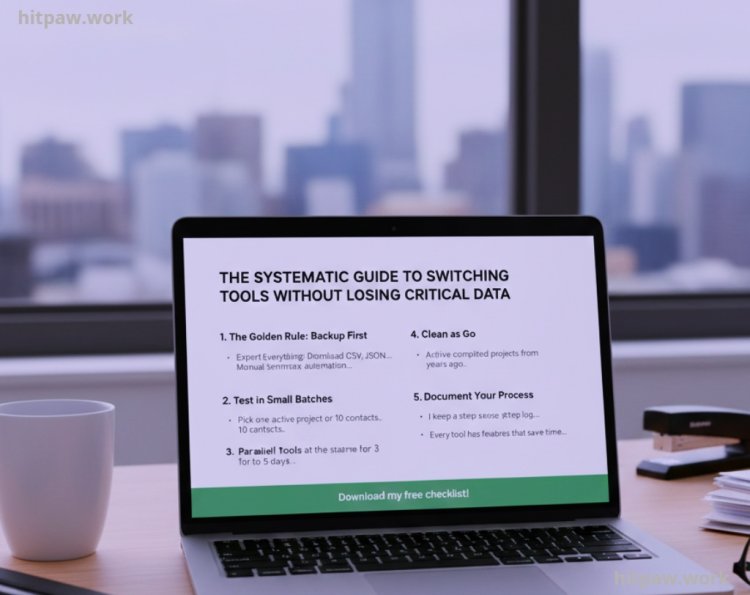
How I Think About Switching Tools Now
From my experience, switching tools doesn’t have to be stressful if you approach it thoughtfully. I used to rush migrations, assuming everything would transfer perfectly, but now I take a structured approach: I always start with a full backup, test a small batch first, and map my data fields carefully.
I also learned the value of keeping both tools running in parallel for a short period. This lets me catch mistakes early without disrupting my workflow. Automating repetitive tasks only after verifying everything manually saves a lot of headaches.
Most importantly, I treat the switch as an opportunity to clean up old data and refine workflows. Instead of simply moving everything I evaluate what’s truly necessary, remove duplicates, and reorganize files for efficiency.
Frequently Asked Questions
Q1: Do I need to keep my old tool after migration?
Yes. Keep it archived for at least a week or until you verify that all data and attachments are correctly transferred. This acts as a safety net in case anything goes wrong.
Q2: How can I prevent data loss during tool migration?
Always back up your data first, export it in universal formats like CSV or Excel, test a small batch, and map your fields carefully before doing a full migration.
Q3: Can automation tools like Zapier completely replace manual migration?
Automation helps with repetitive tasks, but manual verification is essential for things like attachments, comments, or customized formatting that might not transfer automatically.
Q4: What if my new tool doesn’t support some of the old file formats?
Use an intermediate format like CSV, Excel, or cloud storage to temporarily hold your data. Sometimes, converting files via Google Sheets or another intermediary tool works best.
Q5: How long does a typical migration take?
It depends on the complexity and size of your data. Small projects may take a few hours, while larger workflows with multiple clients or attachments may take a full day or more.
Q6: How do I ensure my team adopts the new tool smoothly?
Provide clear guides, checklists, and a few days of parallel operation between old and new tools. Encourage feedback and document any challenges for future migrations.
Q7: Is it necessary to map data fields before migration?
Absolutely. Different tools name fields differently. Mapping ensures tasks, deadlines, client info, and labels appear correctly in the new system, preventing confusion.
Q8: Should I automate repetitive workflows during migration or after?
I recommend doing it during migration on a small scale. This way, you can ensure that your automation works correctly and doesn’t cause duplicated or missing tasks.
What's Your Reaction?