Best Tools to Protect Online Privacy
Learn the exact tools and practical steps I personally use to protect my online privacy, secure accounts, prevent hacking, and stop data tracking.
Main Highlights Regarding Tools to Protect Online Privacy
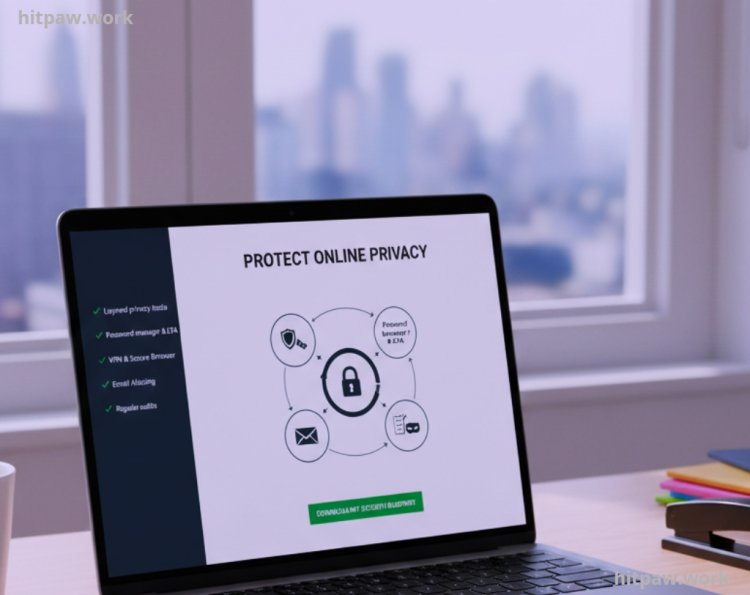
• I reduced spam, phishing attempts, and tracking by using layered privacy tools.
• A password manager and hardware based 2FA changed everything for my security.
• A reliable VPN and secure browser setup significantly reduced data tracking.
• Email aliasing stopped companies from sharing my primary email.
• Regular audits and small monthly maintenance keep my privacy strong.
Short Introduction
A few years ago, I thought I was “careful” online. I used strong passwords (or so I believed), avoided suspicious links, and didn’t overshare on social media. Yet somehow, I was getting targeted phishing emails, random login alerts, and creepy ads that reflected private conversations.
The turning point came when one of my freelance accounts was almost compromised because I reused a password. That moment scared me enough to take online privacy seriously. I didn’t just install one tool I built a complete privacy system.
This article is based on the exact process I personally implemented. I tested tools, made mistakes, fixed them, and created a simple but powerful privacy setup that protects my freelance work, client data, and personal life.
If you’re serious about protecting your digital presence, this is the step by step guide I wish I had earlier.
Why Online Privacy Matters (From My Own Wake Up Call)
I used to think online privacy was only for celebrities, big companies, or people who had “something to hide.” I believed I was too small to be a target. I wasn’t running a huge corporation. I wasn’t a public figure. I was just managing my freelance work, social media accounts, emails, and a few client projects.
That assumption was my biggest mistake.
My wake up call didn’t come from a dramatic hack. It came from small warning signs that I ignored at first.
It started with strange login alerts. One night, I received an email saying someone tried to access my account from another country. I changed the password and moved on. A week later, another alert. Then I began receiving phishing emails that looked surprisingly convincing emails that included my name, partial phone number, and even referenced services I actually used.
That’s when I realized: my data was already circulating somewhere.
The moment that truly shook me was when a client sent me a screenshot asking if I had emailed them requesting payment details again. I hadn’t. Someone was impersonating me using a similar looking email address. Luckily, the client verified before responding, but that situation could have damaged my reputation.
That was the day I stopped treating privacy casually.
Materials I Personally Use
Here’s my actual toolkit. No theory. Just what I installed and configured.
1. Password Manager
I use Bitwarden.
Why Bitwarden?
• Open source
• Strong encryption
• Affordable premium plan
• Cross device sync
I previously used Google’s built in password saving, but that was a mistake (more on that later).
2. VPN Service
I tested multiple services and settled on NordVPN.
What I liked:
• No logs policy
• Threat protection feature
• Fast speed (important for client Zoom calls)
• Easy mobile + desktop setup
I don’t keep it on 24/7, but I use it on public Wi-Fi and during sensitive work.
3. Secure Browser
I switched from Chrome to Brave.
Why?
• Built in tracker blocking
• Script blocking options
• Private browsing with Tor option
It immediately reduced targeted ads.
4. Two Factor Authentication (2FA)
I use:
• Authy for app based 2FA
• YubiKey hardware key for high value accounts
This alone made my accounts 10x safer.
5. Encrypted Email
For sensitive work, I tested Proton Mail.
End to end encryption matters when you exchange contracts and legal documents.
6. Cloud Storage with Encryption
I use Tresorit for sensitive client files.
Before this, I used regular Google Drive for everything. Now I separate sensitive and general files.
Step by Step Instructions: How I Secured My Online Privacy
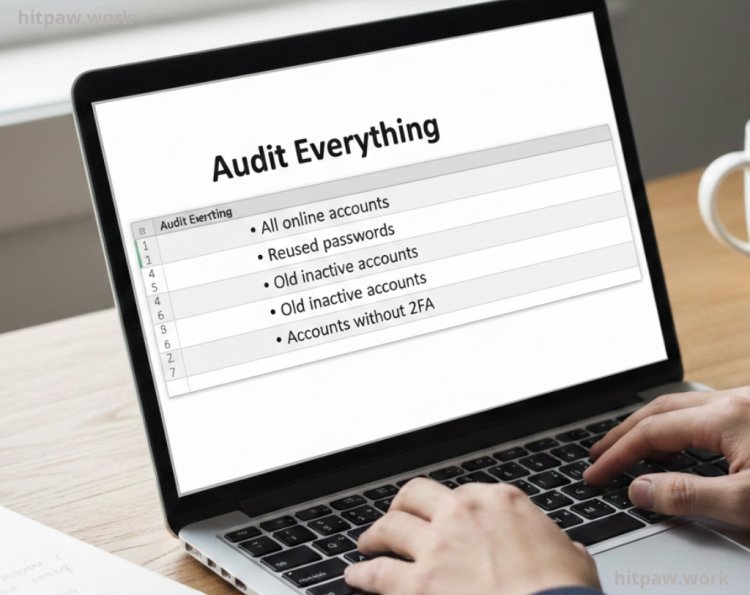
Step 1: Audit Everything
I made a simple spreadsheet and listed:
• All online accounts
• Reused passwords
• Old inactive accounts
• Accounts without 2FA
This step was uncomfortable. I discovered I reused one password across 6 platforms.
That stopped immediately.
Step 2: Install a Password Manager & Generate New Passwords
I installed Bitwarden and:
• Generated 20+ character passwords
• Enabled master password with 2FA
• Removed saved passwords from my browser
This alone eliminated password reuse completely.
Step 3: Enable 2FA on Critical Accounts
I enabled 2FA for:
• Email
• Banking
• Freelance platforms
• Hosting provider
• Domain registrar
I prioritized accounts that control money and communication.
Step 4: Lock Down My Browser
Inside Brave, I:
• Blocked third party cookies
• Disabled fingerprinting
• Installed uBlock Origin
• Removed unnecessary extensions
I also logged out of accounts I didn’t actively use.
Step 5: Use Email Aliases
Instead of using one email everywhere, I created separate aliases:
• Work accounts
• Newsletters
• Client communication
• Shopping accounts
This reduced spam by nearly 70%.
Step 6: Secure Public Wi-Fi Usage
Before, I used public Wi-Fi freely.
Now:
• VPN ON
• File sharing OFF
• Avoid sensitive logins
• Use mobile hotspot when possible
Simple habits. Big protection.
Step 7: Remove Personal Data from Data Brokers
I manually searched my name and:
• Requested removal from people search websites
• Opted out of marketing databases
• Hid WHOIS information for my domain
This step took time, but it worked.
What I Got Wrong the First Time
I want to be honest.
When I first tried to improve privacy, I made these mistakes:
1. I Installed Too Many Tools at Once
I overloaded my system with 5 privacy extensions. They conflicted and slowed everything down.
Now I use minimal, essential tools.
2. I Forgot Backup Codes
I enabled 2FA but didn’t store backup codes safely.
When I switched phones, I almost lost access.
Now:
• Backup codes stored in encrypted storage
• Printed copy in secure location
3. I Trusted Browser Password Storage
Chrome’s saved passwords felt convenient. But when I checked security reports, several were exposed in breaches.
Switching to a dedicated password manager was smarter.
4. I Ignored Software Updates
Outdated plugins are easy targets.
Now I:
• Enable automatic updates
• Review installed apps monthly
Real Feedback From My Experience
After tightening my privacy:
• Spam emails reduced dramatically
• No more suspicious login alerts
• Clients appreciated secure file sharing
• I felt more confident handling sensitive contracts
One client even told me, “I appreciate that you use encrypted file sharing. It shows professionalism.”
Privacy builds trust.
Care Table
|
Task |
Frequency |
Why I Do It |
|
Password audit |
Every 3 months |
Remove weak/reused passwords |
|
Update software |
Monthly |
Prevent vulnerabilities |
|
Check breach alerts |
Monthly |
Change compromised credentials |
|
Review app permissions |
Quarterly |
Remove unnecessary access |
|
Backup password vault |
Every 6 months |
Emergency recovery |
Privacy isn’t one time setup. It’s ongoing hygiene.
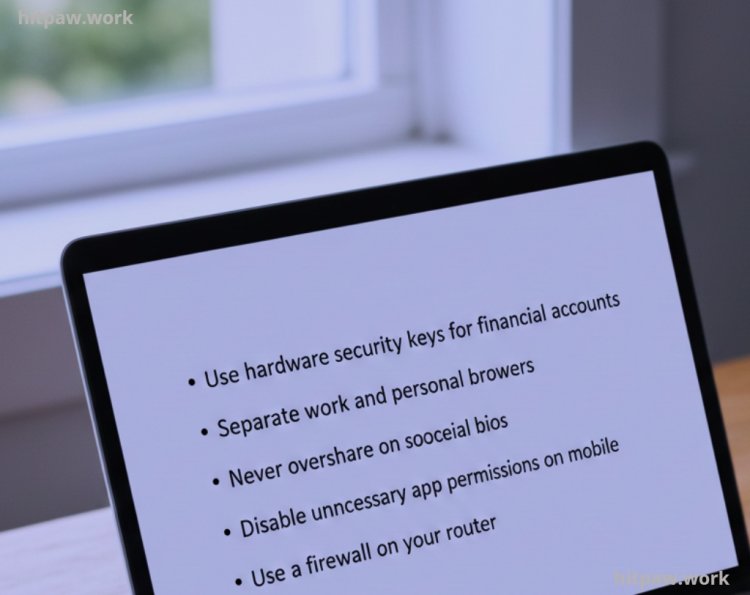
Tips From My Experience
• Use hardware security keys for financial accounts
• Separate work and personal browsers
• Never overshare on social media bios
• Disable unnecessary app permissions on mobile
• Use a firewall on your router
Small steps compound over time.
How I Think About Online Privacy Now
I don’t think about privacy as hiding. I think about it as digital discipline.
Every account I create, I ask:
• Does this need my real information?
• Can I use an alias?
• Does this need 2FA?
• Is this worth trusting with my data?
Protecting online privacy gave me peace of mind. I don’t panic over suspicious emails anymore. I don’t worry about weak passwords. And I know my freelance business is more secure.
You don’t need to become paranoid. Just become intentional.
Start small:
• Install a password manager
• Enable 2FA
• Clean up old accounts
Then build from there.
Frequently Asked Questions
Q1: Do I really need all these privacy tools, or can I just use one?
You don’t need everything at once. I started with just a password manager and 2FA. That alone reduced most of my risk. Over time, I added a VPN, secure browser, and encrypted storage. Think of privacy as layers each tool adds another layer of protection.
Q2: Is a password manager actually safer than remembering passwords myself?
Yes, in my experience it’s much safer. Before using a password manager, I reused passwords without realizing it. A dedicated manager generates long, random passwords and stores them securely. As long as your master password is strong and protected with 2FA, it’s far more secure than memory or browser saving.
Q3: Will using a VPN slow down my internet?
Sometimes slightly, depending on the server location. When I first started, I noticed a small drop in speed. I fixed it by choosing a nearby server instead of a distant one. For public Wi-Fi and sensitive tasks, the small speed trade off is worth the security.
Q4: What’s the first step I should take if I feel my data was exposed?
Immediately change passwords for critical accounts, enable 2FA if it’s not already active, and check for unusual activity. I also recommend reviewing connected devices and logging out of all sessions. Acting quickly can prevent bigger damage.
Q5: How often should I review my privacy setup?
I personally do a quick check every month and a deeper audit every three months. I look for weak passwords, unused accounts, and app permissions that I no longer need. Regular small checkups prevent major issues later.
Q6: Are free privacy tools good enough?
Some free tools are excellent, especially open source ones. I started with free versions and upgraded only when I needed advanced features. The key isn’t whether it’s free or paid it’s whether you configure it properly and maintain it regularly.
Q7: Can I protect my privacy without being technical?
Absolutely. I’m not a cybersecurity engineer. I just followed simple steps: strong passwords, 2FA, secure browsing habits, and regular updates. You don’t need advanced skills just consistency.
What's Your Reaction?